Computer Problems: 10 Checks to Try Before You Call a Technician
Yes, try these first. A proper restart, checking power and cables, freeing up storage, installing updates and restarting the modem fix a large share of slow, frozen or offline computers. Stop and call a technician if the computer makes clicking or grinding noises, smells hot, has had liquid on it, shows a ransom message, or holds files you cannot afford to lose.
On this page
Back up first, if you can
If the computer still starts, copy anything you cannot replace before you try anything else: photos, business files, the accounts folder. An external drive, OneDrive or iCloud all work. A backup turns a bad day into an inconvenience.
The 10 checks
- Restart properly. On Windows use Start, Power, Restart rather than Shut down, because Fast Startup means a shut down does not fully clear the system. On a Mac use the Apple menu, Restart.
- Check power and cables. Is the charger light on? Try another power point and, for a desktop, check the monitor cable and that the screen is on the right input.
- Unplug the extras. Remove USB drives, docks and other accessories, then start it again. A faulty accessory can stop a computer from starting.
- Free up storage. A nearly full drive makes any computer crawl. On Windows go to Settings, System, Storage. On a Mac go to System Settings, General, Storage. Aim to keep at least 10 per cent free.
- Install pending updates. Windows Update or macOS Software Update, then restart. Many crashes and security holes are fixed this way.
- See what is running. Open Task Manager on Windows (Ctrl, Shift and Esc together) or Activity Monitor on a Mac. Close anything using most of the processor or memory, including a browser with dozens of tabs.
- Test the internet, not just the computer. If phones on the same wifi are also offline, the problem is the connection. Turn the modem off at the wall for 30 seconds, turn it back on, and check your provider's outage page.
- Run a security scan. On Windows open Windows Security and run a quick scan. Use the security software you already have. Do not download a cleaner that a pop up recommends.
- For printers, restart both ends. Turn the printer and the computer off and on, check the printer is on the same wifi, then remove and add the printer again.
- Write down what you see. The exact error message, when it started and what changed just before. A photo of the screen saves time and money when you do call.
Stop and call if you see this
- Clicking, grinding or beeping from inside the computer. That can be a failing drive, and every restart can make recovery harder. Turn it off.
- A burning smell, a hot case, or a laptop battery that has swollen and lifted the keyboard or trackpad. Unplug it and do not charge it.
- Liquid spilled on it. Turn it off, unplug it, and do not turn it back on to check.
- A message saying your files are locked and asking for payment. Disconnect it from the network and read our first 24 hours ransomware guide.
- Repeated blue screens on Windows, or restarts with an error on a Mac.
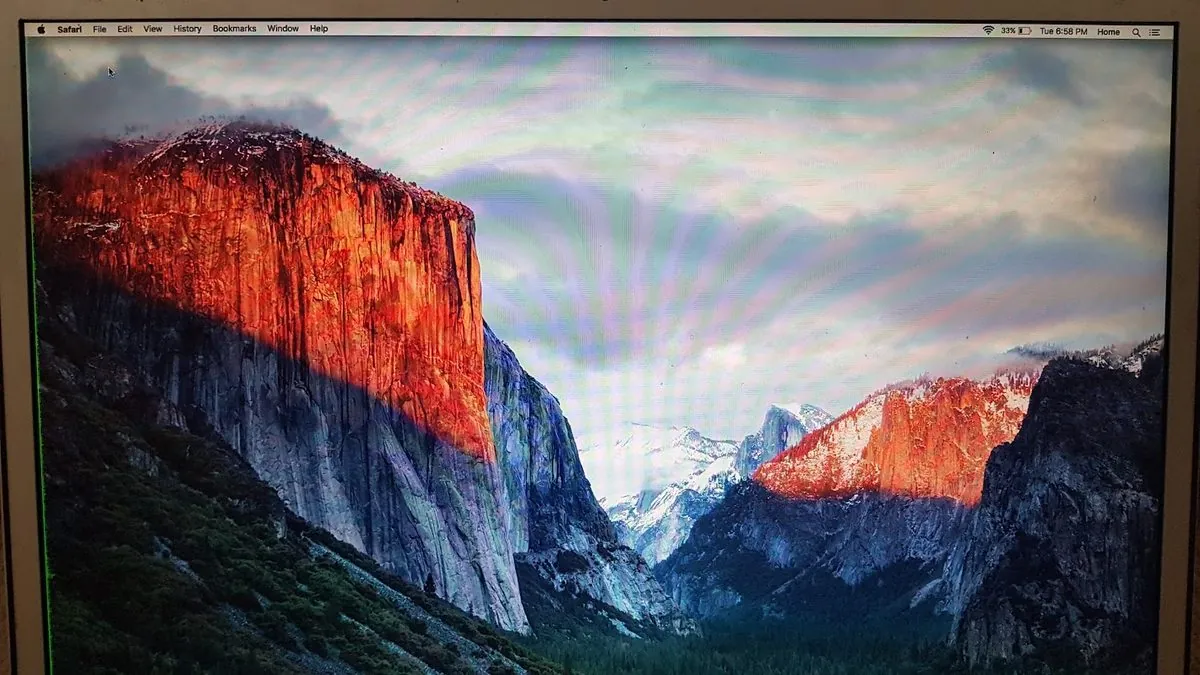
- Lines, colour bands or flicker on the screen, especially after a knock or a drop, like the photo above.
- Files or folders that have gone missing and are not in the bin.
What not to do
- Do not call a number shown in a pop up that says your computer is infected. Microsoft and Apple do not contact you that way.
- Do not let anyone who called you out of the blue connect to your computer remotely.
- Do not install free cleaner or speed up programs. They rarely help and some are malware.
- Do not keep restarting a computer that is clicking or will not finish starting up.
What happens when you call us
We find the fault first, on site on the Northern Beaches and North Shore or in a remote session when it is a software problem. You get a written quote and approve it before any repair starts. If the machine is not worth fixing we say so, and our fix or replace guide explains how we decide. On site work is A$145 an hour including GST with free call out, and remote support is A$95 an hour. See the full computer repair prices.
FAQ
Should I shut down or restart when my PC plays up?
Restart. On Windows 10 and 11, Fast Startup is on by default, so Shut down saves part of the system to disk and loads it again next time. Restart clears it properly.
A pop up says my computer is infected and to call a number. What do I do?
Do not call the number and do not let anyone connect to your computer. Close the browser, restart, and run a scan with the security software you already have. If you already gave someone access, disconnect from the internet, change your email and banking passwords from another device, and call us.
My computer is just slow. Do I need a new one?
Not always. Free up storage, install updates and close what is running in the background first. If it is still slow, an SSD or RAM upgrade often fixes an older machine. Our fix or replace guide covers when it is not worth it.
Can you fix it remotely?
Many software problems can be fixed in a remote session. Hardware faults need hands, so we come on site on the Northern Beaches and North Shore.
Related service: Computer repairs Northern Beaches · contact eWEB TEC.
Tried the checks and still stuck?